
You can now work on your Enhancv resume from the AI assistant you already use. Connect Claude, ChatGPT or another AI app to your Enhancv account once, and then ask in plain words: tailor a copy to a job ad, write its cover letter, find jobs that fit your resume, add a win from your meeting notes. Your assistant does the work in Enhancv, and you see each change in your editor.

Quick summary
- The Enhancv Resume MCP connects your Enhancv account to Claude, ChatGPT and other AI apps that support remote MCP servers.
- Setup takes a minute: add Enhancv as a connector in your AI app, sign in to Enhancv and click Allow. There are no API keys to copy.
- Your assistant can edit and tailor resumes, write cover letters, change the design, find jobs in Enhancv’s job feed and manage your job tracker.
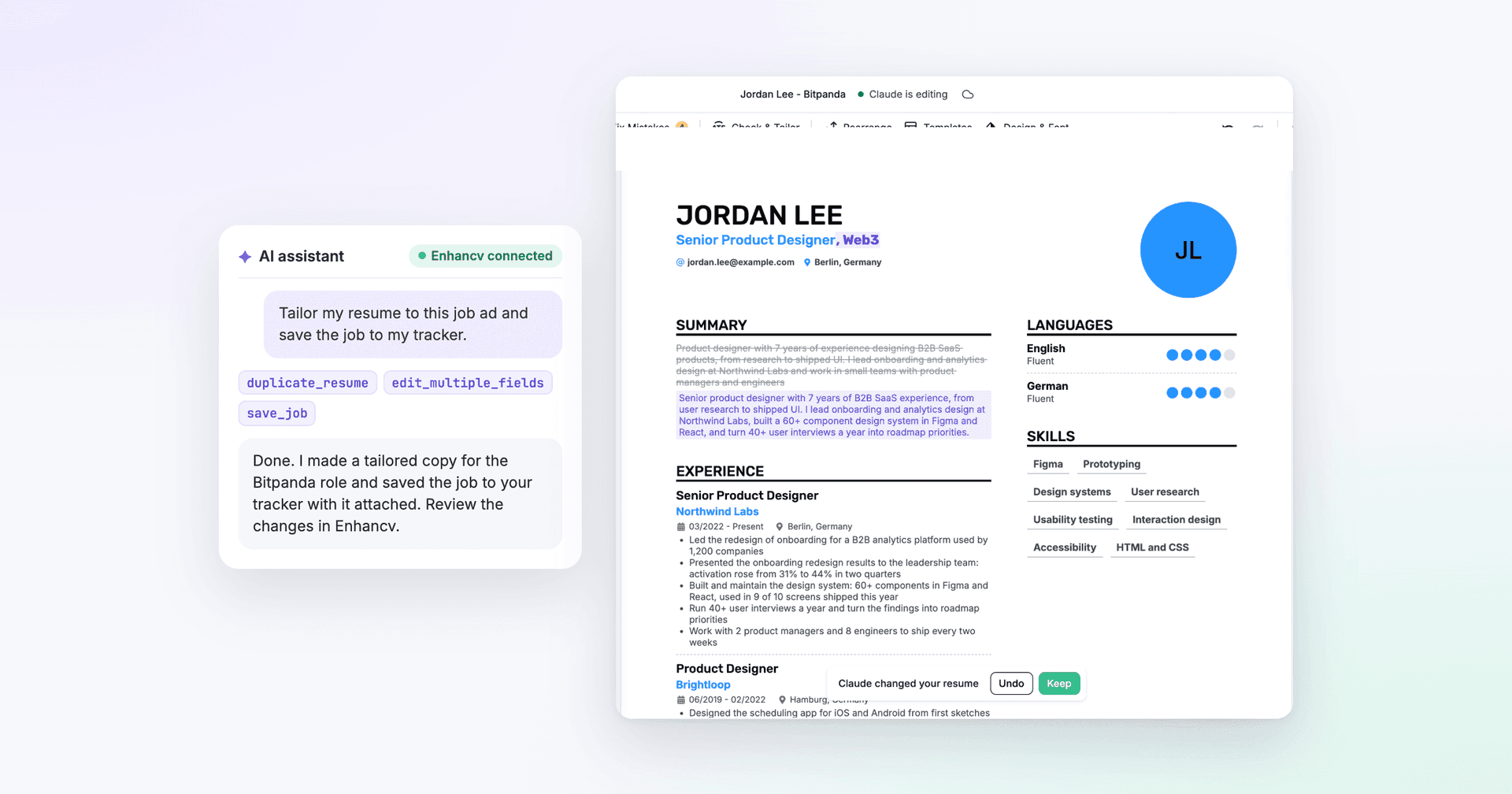
- Keep the resume open in Enhancv and every change shows highlighted, for you to keep or undo.
- On the free plan your assistant can read your resumes, cover letters and saved jobs and search jobs. Changes need Enhancv Pro.
What is the Enhancv Resume MCP?
MCP (Model Context Protocol) is an open standard that lets AI assistants connect to other apps. Enhancv runs as a remote MCP server: your assistant doesn’t open a new screen inside the chat, it reads and edits your resume through the connection, and the result is in your Enhancv account.
Once you connect, your assistant can:
- Read your resumes and the jobs in your Enhancv job tracker
- Rewrite any section, add or remove entries and change their order
- Switch templates, fonts, font size and spacing
- Create, import and copy resumes, and download them as a PDF
- Tailor a copy of your resume to a job ad
- Write cover letters from your resume and a job ad, and attach them to saved jobs
- Search Enhancv’s job feed and save jobs to your tracker with their status and notes
It can’t delete your resumes, cover letters or saved jobs, and it can’t reach your billing or your account settings.
How to connect Enhancv to Claude, ChatGPT and other AI apps
Open Account → AI connections in Enhancv and pick your assistant. The page shows the steps for each one: Claude on the web and desktop, ChatGPT, Claude Code, Cursor, VS Code and any other app that can add a remote MCP server. In Claude, for example:
- Open Customize → Connectors, select Add, then Add custom connector.
- Name it Enhancv, paste the server URL from the Enhancv page, select Continue, then Add.
- Select Connect, log in to Enhancv and allow access.
On Claude’s free plan you can add one custom connector.
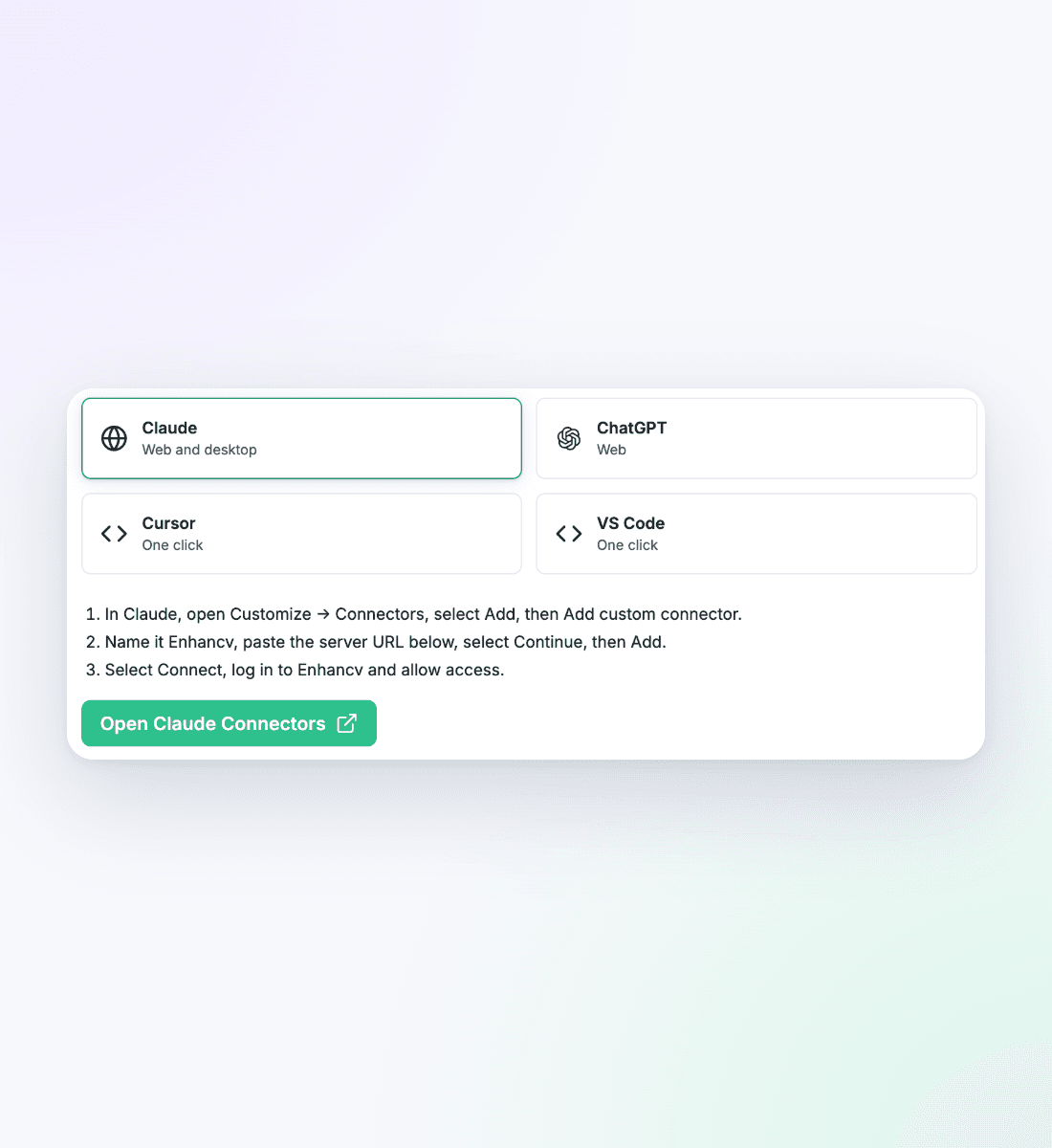
Connect your AI in Enhancv shows the steps for each assistant.
When you connect, Enhancv shows exactly what the assistant will and won’t be able to do. Click Allow, and you’re done.
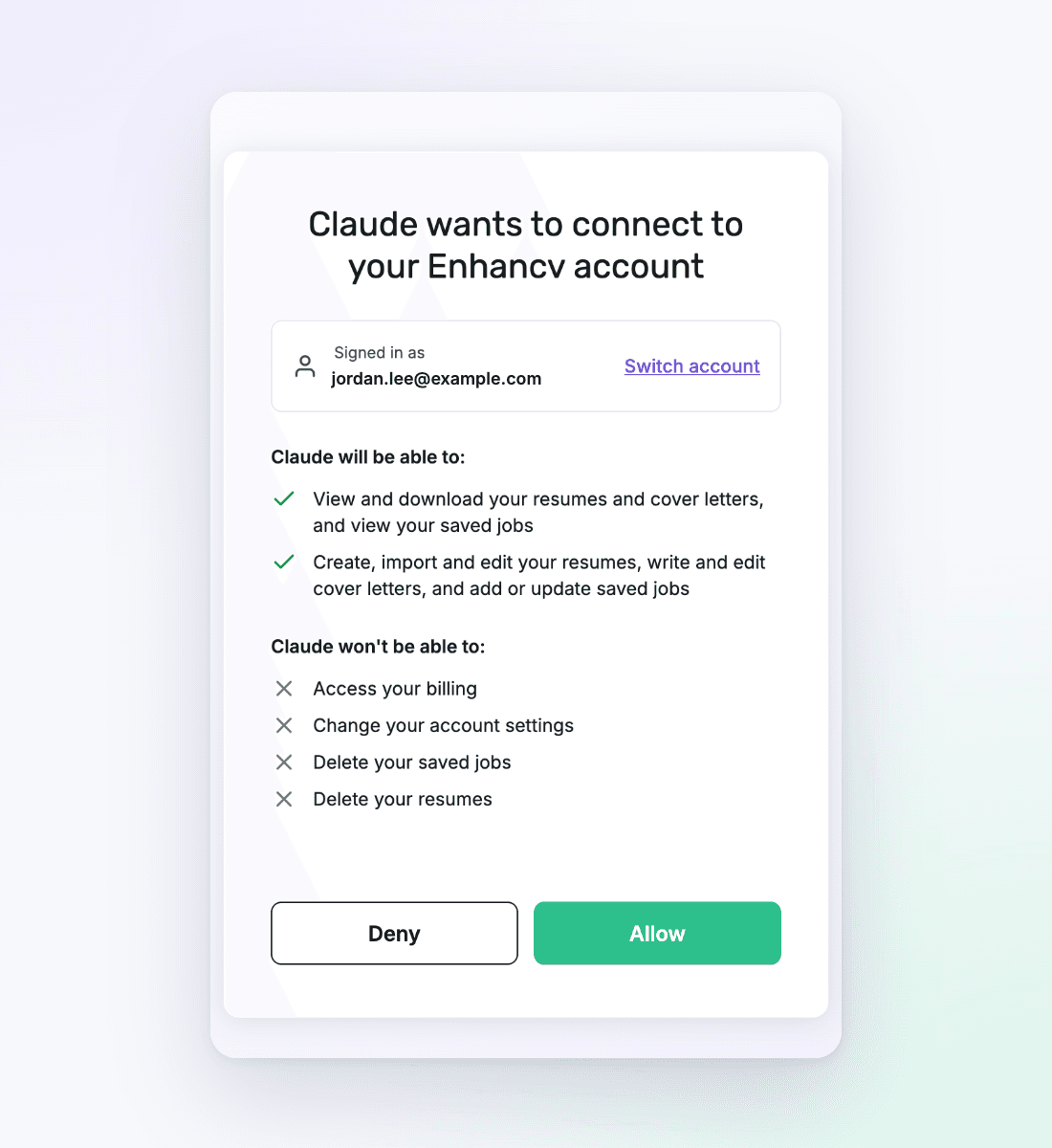
You decide: allow the connection or deny it.
See every change in your Enhancv editor
Keep the resume open in Enhancv while your assistant works. The editor shows that your assistant is editing, highlights what it changed and lets you keep the change or undo it. If the resume isn’t open, your assistant still saves its changes, and they’re there the next time you open it.
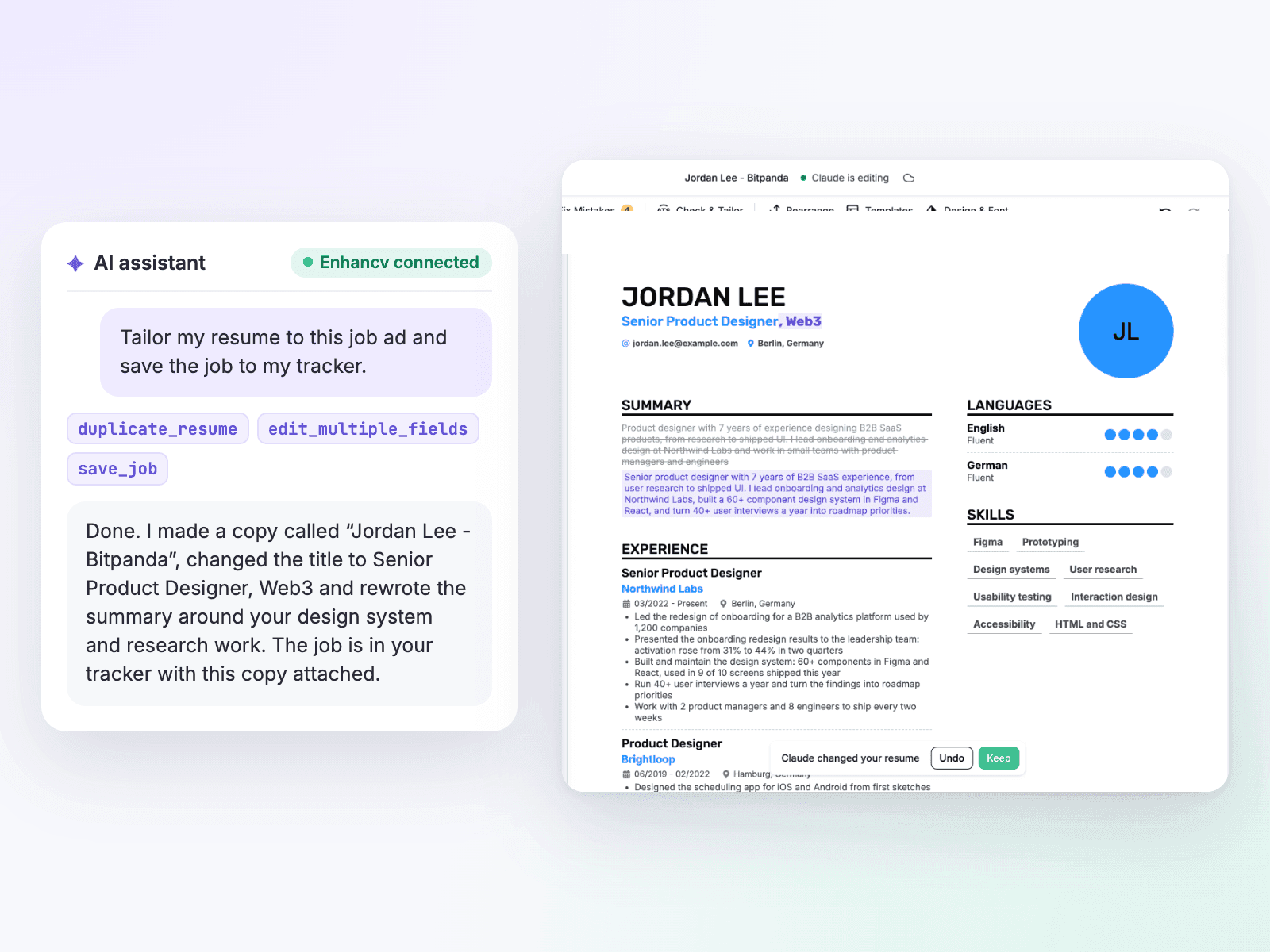
Claude tailors a copy of the resume, and the editor shows the changes for review.
9 things to ask your AI assistant
Your assistant writes from the facts in your resume and your conversation. When a bullet needs a number you haven’t shared, it asks you for it.
1. Tailor a copy of your resume to every job
Your assistant copies your resume for each job ad, tailors each copy and saves the job to your tracker with that copy attached.
Try: “Make a copy of my resume for each of these three job ads, tailor each copy to its posting and save all three jobs to my tracker.”
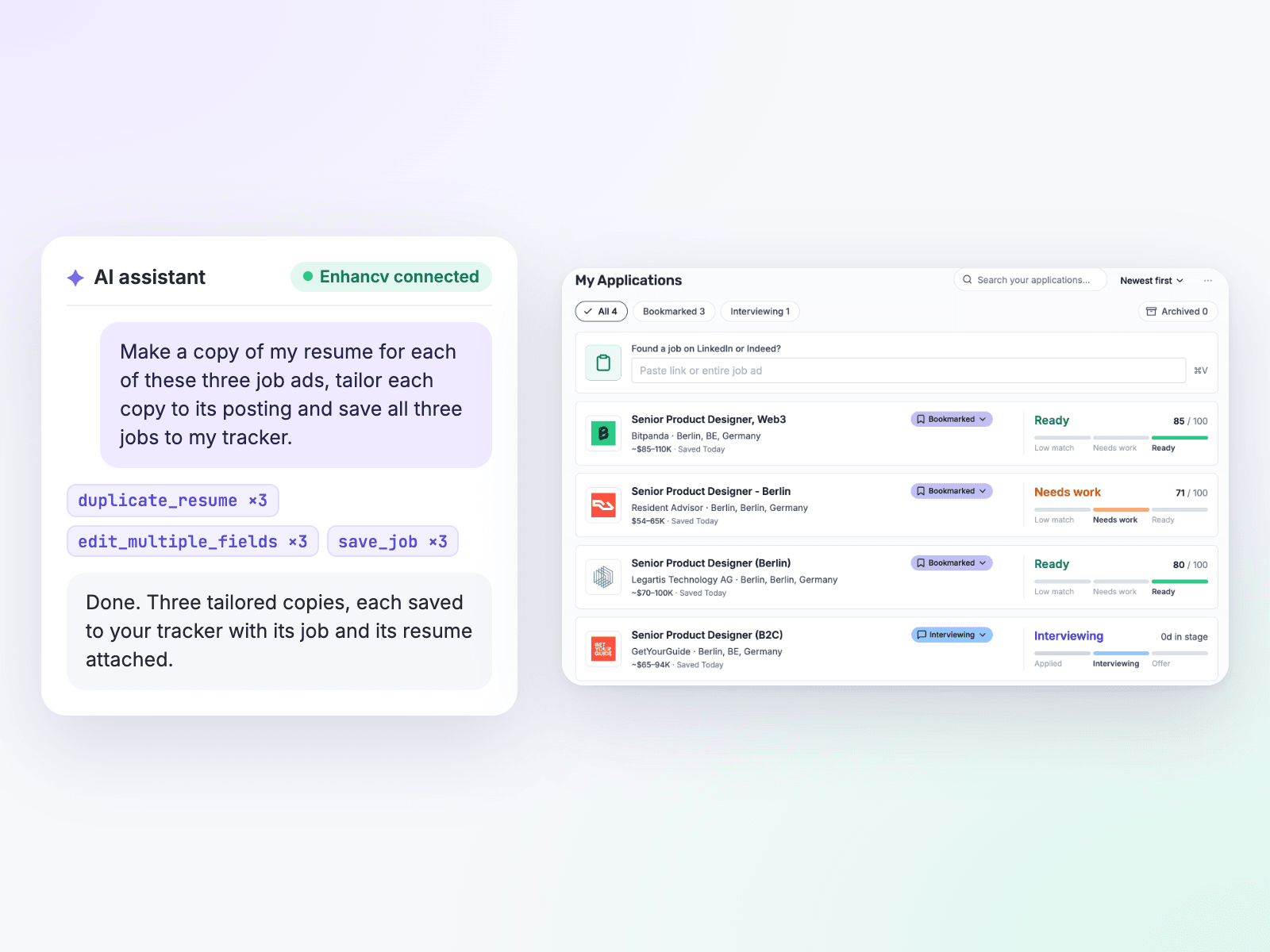
Each job lands in the tracker with its tailored resume attached.
2. Find jobs that fit your resume
Your assistant searches Enhancv’s job feed the way Find Jobs does, picks the ads that fit your resume and saves them to your tracker with the whole job description.
Try: “Find product designer jobs in Berlin that fit my resume and add the three best ones to my tracker.”
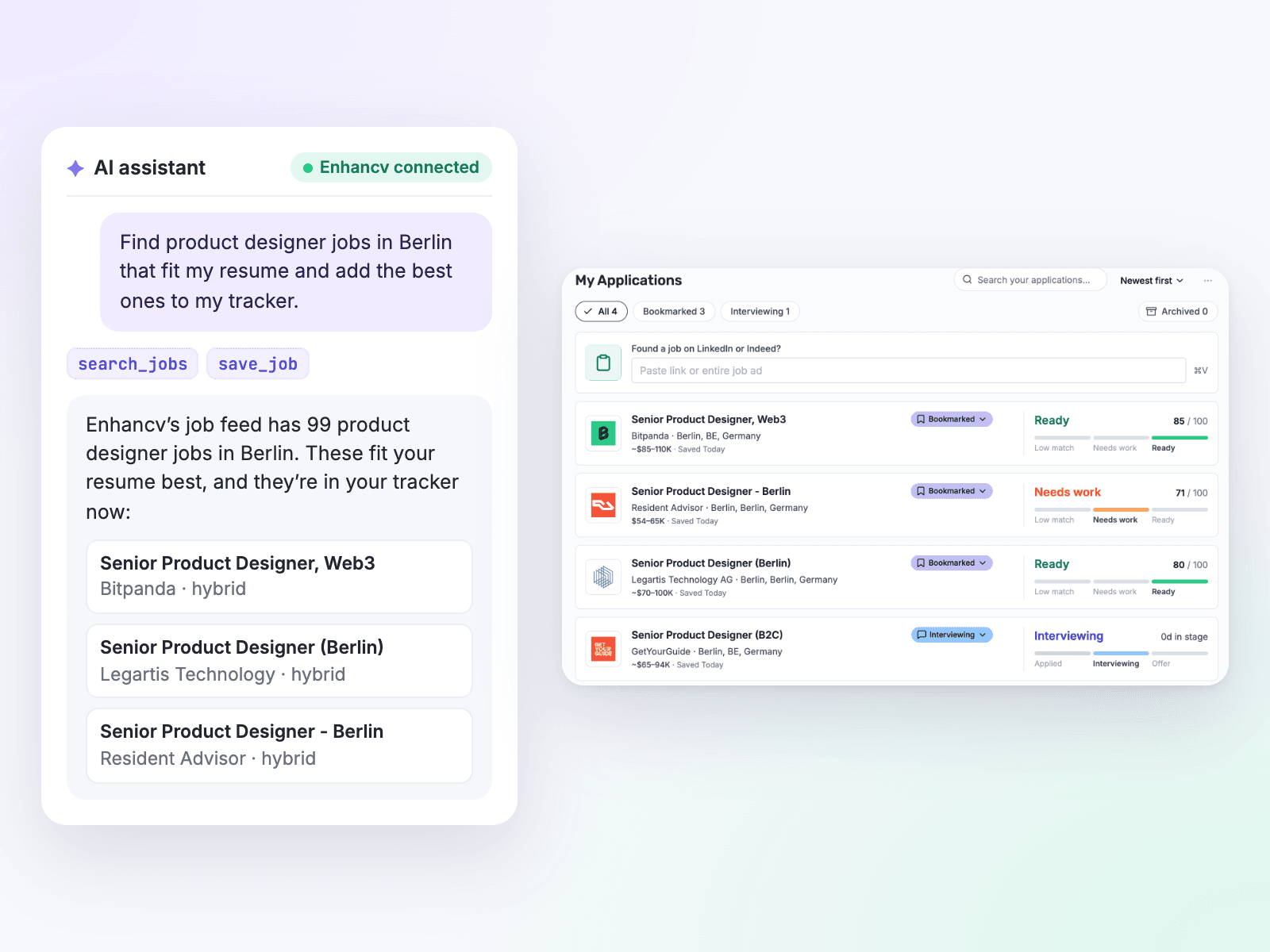
Search results go straight into your tracker.
3. Turn meeting notes into achievements
Connect a meeting notes app such as Granola, Otter.ai or Fathom to your assistant next to Enhancv, and it finds the wins you already talked about.
Try: “Find the meetings this year where I presented results or got credit for a project, and add the three biggest wins to my current role.”
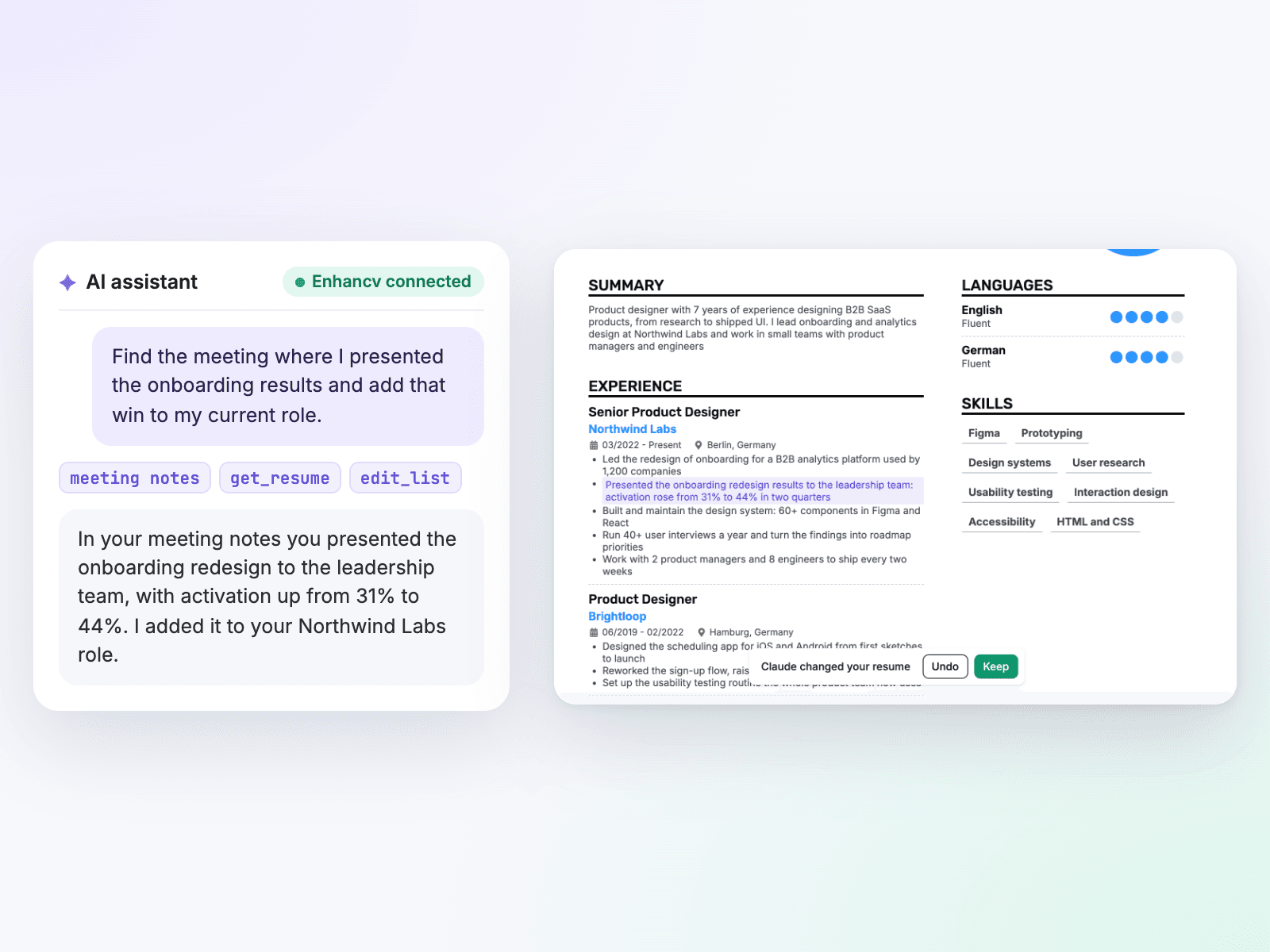
The new bullet shows highlighted until you keep it.
4. Rebuild an old resume in one conversation
Share your old resume. Enhancv’s parser imports it, and your assistant fixes what the import missed, rewrites weak lines and switches the design.
Try: “Import my resume from 2022, switch it to the Crest template and rewrite the summary for senior product roles.”
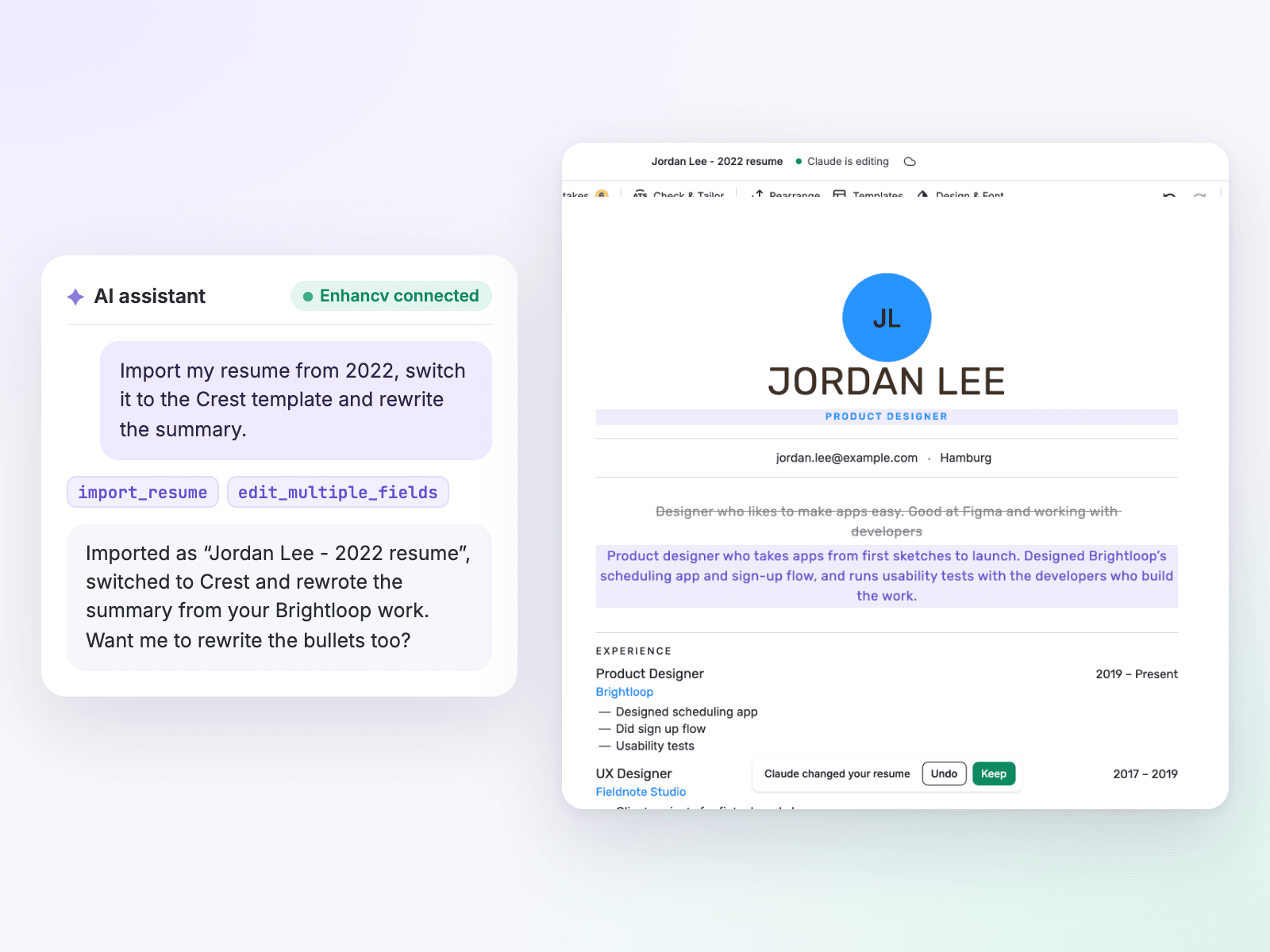
An old resume, imported and rebuilt in the Crest template.
5. Pull the numbers from your work tools
Connect the apps where your results live, like GitHub, HubSpot or Amplitude, and give every bullet a real number.
Try: “Total my closed-won revenue in HubSpot for this year and add my three biggest deals to my resume.”
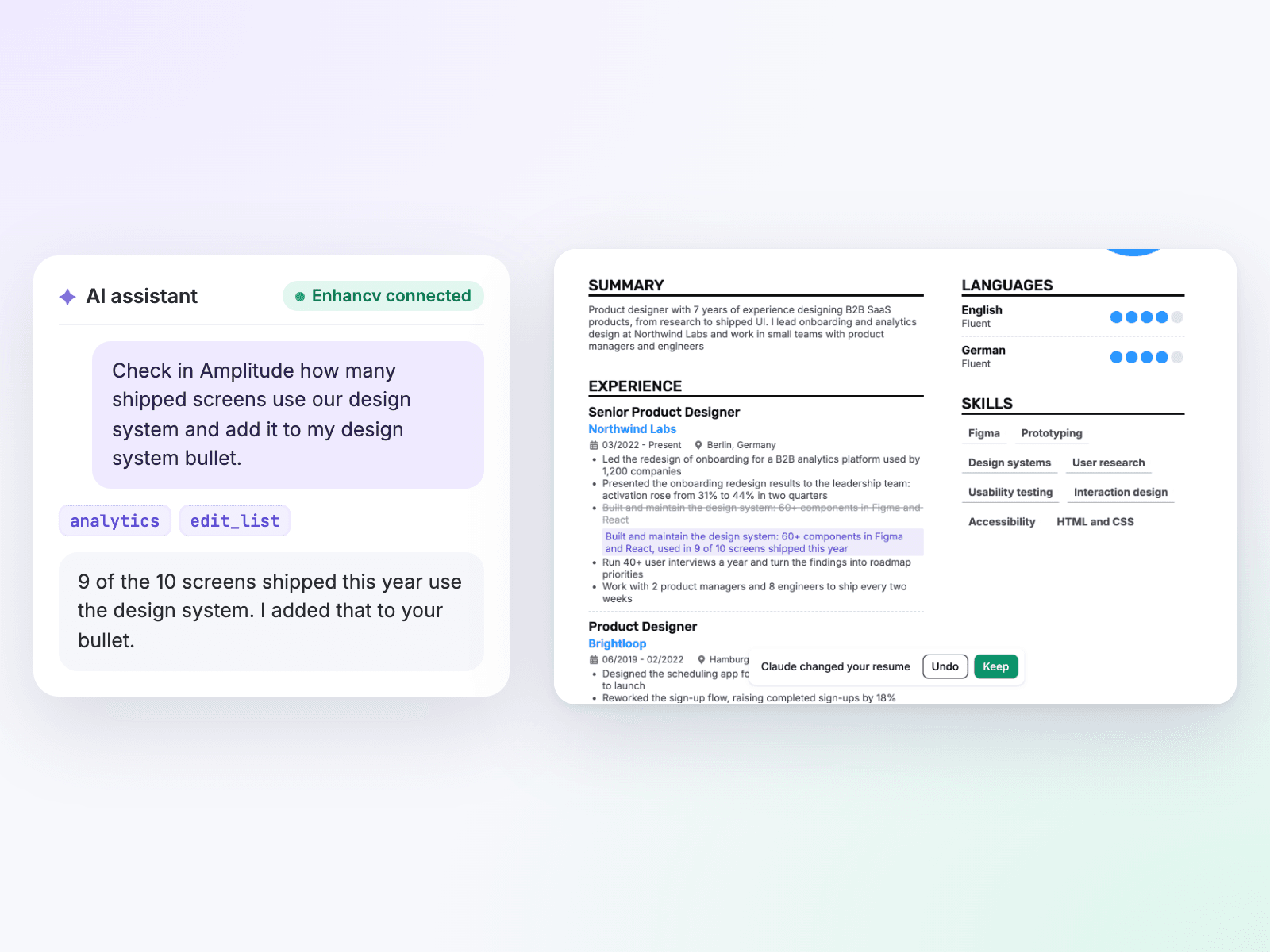
Real numbers, pulled from the tool that has them.
6. Track applications and prepare for interviews
Your assistant moves jobs through your Enhancv tracker, adds notes and runs a mock interview from the job description and your resume.
Try: “I got an interview for the Acme job. Move it to Interviewing and run a mock interview with me based on the job description.”
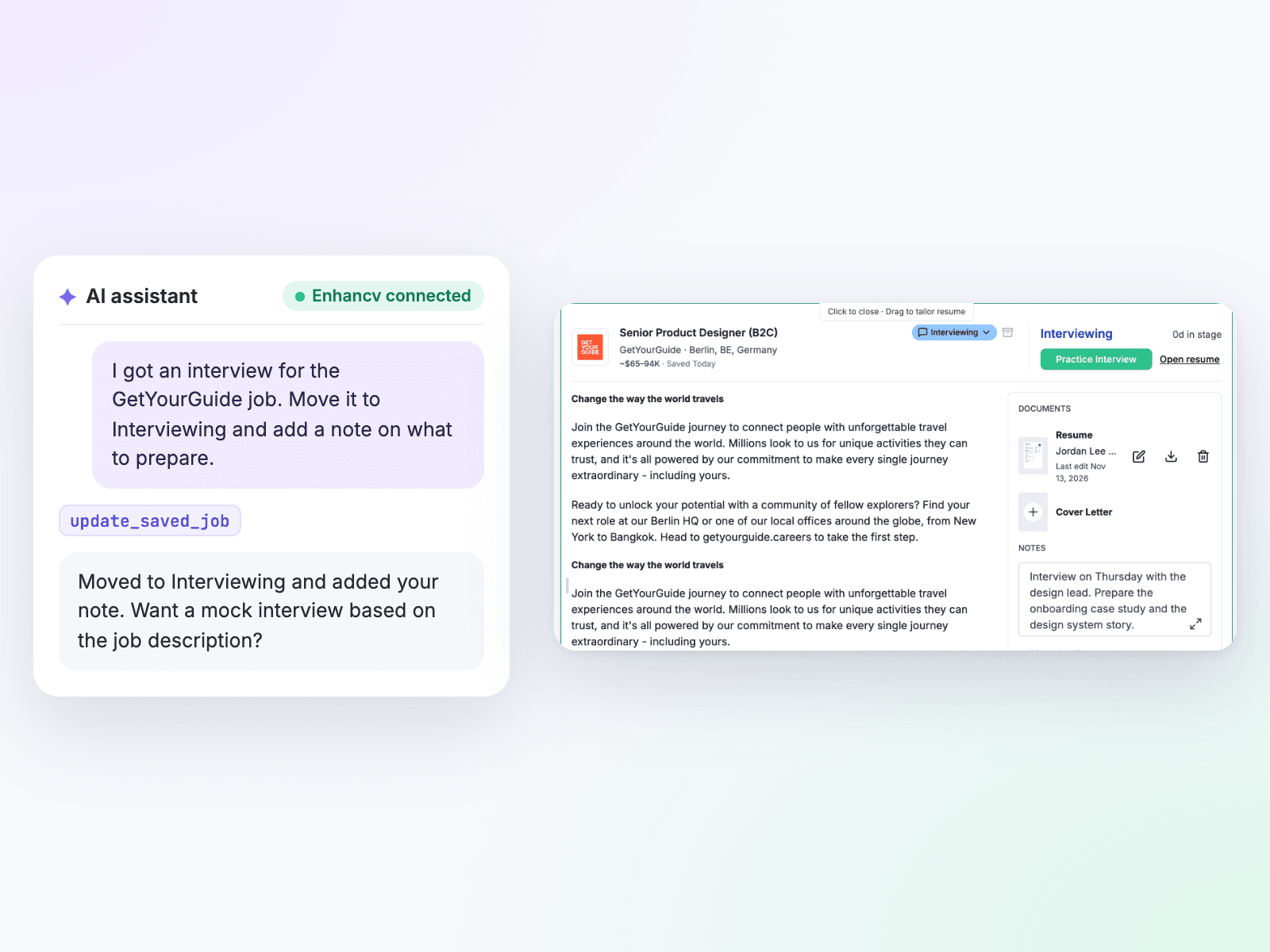
The job moves to Interviewing, with your prep note.
7. Research the company, then tailor
Most AI assistants can read web pages. Point that research at your resume.
Try: “Read Acme’s website and recent news, then rewrite my summary around what the team is hiring for.”
8. Make a version for another country
Your assistant copies your resume, translates it and reorders it for the market you’re applying in. It writes in your resume’s language, even when you chat in another one.
Try: “Make a German version of my resume for jobs in Munich.”
9. Write the cover letter too
Your assistant writes a cover letter from your resume and the job description, saves it in Enhancv with your resume’s design and attaches it to the job in your tracker.
Try: “Write a cover letter for the Acme job in my tracker and attach it to that job.”
What each Enhancv plan includes
Every Enhancv account can connect. On the free plan, your assistant can read your resumes, cover letters and saved jobs and search jobs. Enhancv Pro unlocks everything else.
Enhancv Resume MCP: Free vs Pro
| What your assistant can do | Free | Pro |
|---|---|---|
| Read your resumes, cover letters and saved jobs | Yes | Yes |
| Search Enhancv’s job feed | Yes | Yes |
| Rewrite content, add sections and reorder | No | Yes |
| Change templates, fonts and spacing | No | Yes |
| Create, import and copy resumes | No | Yes |
| Tailor a copy to each job ad | No | Yes |
| Write cover letters and attach them to saved jobs | No | Yes |
| Save jobs to your tracker and update them | No | Yes |
| Download your resume as a PDF | No | Yes |
Tips for better results
- Keep the resume open. You see each change as it lands and keep it or undo it.
- Give the job ad. Paste the ad or its link, or point your assistant to a job in your tracker, so it tailors to the real posting.
- Share the numbers. Your assistant won’t make up results. Tell it the numbers, or connect the tool that has them.
- Work on a copy. Ask for a copy before you tailor, so your main resume stays as it is.
Make one that's truly you.