
Save Job Adverts with the Enhancv Chrome Extension
Keep adverts from LinkedIn, Indeed or Glassdoor in your tracker, with no copying and pasting.
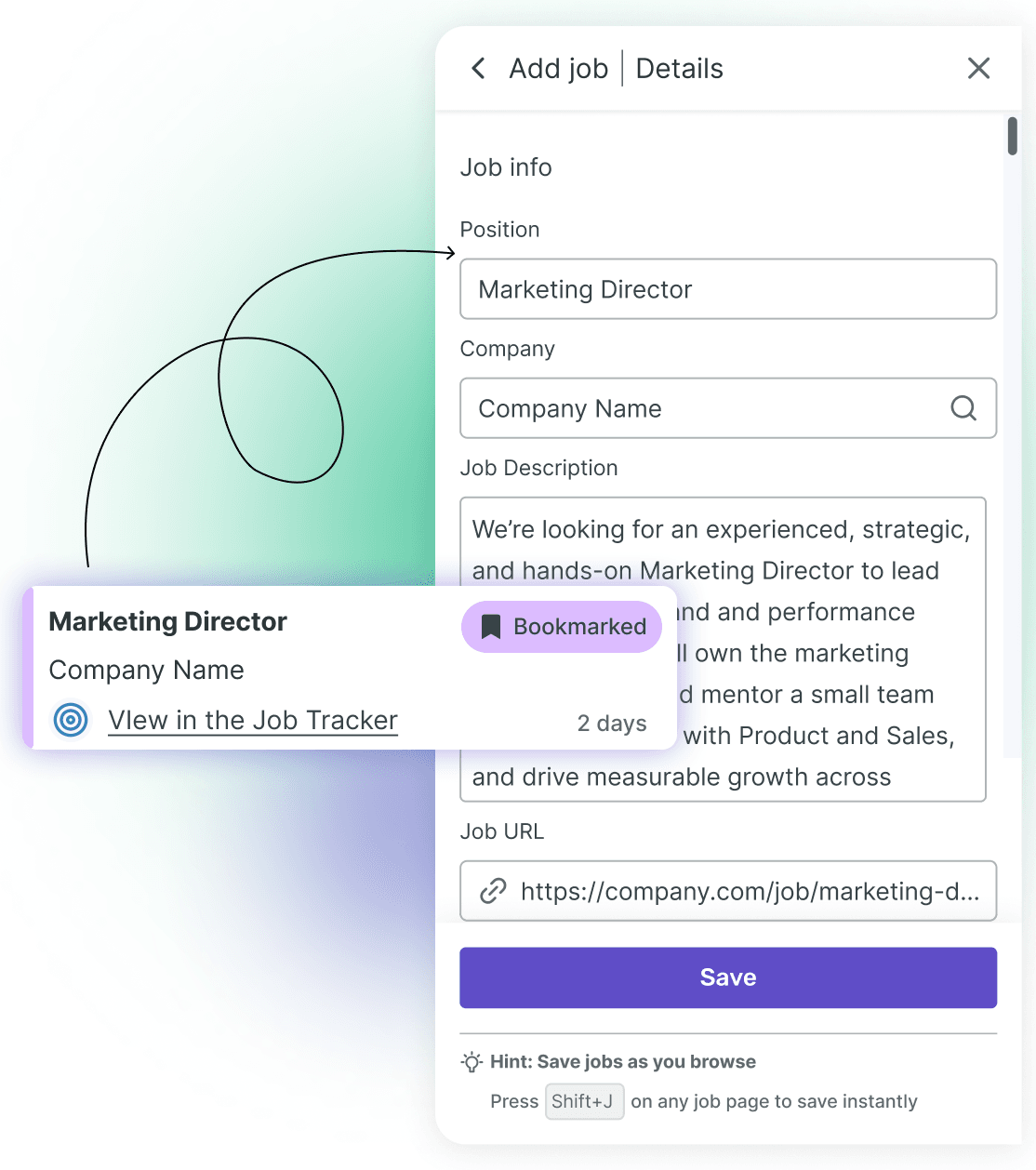
Chrome extension · job search tool
What is the Enhancv Chrome extension?
The Enhancv Chrome extension is a free add-on for your browser. It saves job adverts from LinkedIn, Indeed or Glassdoor to your Job Application Tracker, with the details already filled in. It can also fill in application forms for you from your Enhancv profile and CV.
On a job advert, click the extension’s badge, check the details, then save the job. In your tracker, you can link a CV to it, add tasks and follow its status until you hear back.
How to save a job advert with the Enhancv Chrome extension


Fill in job applications with Autofill
- Name, email, phone number and LinkedIn profile
- Work experience, education and skills from your CV
- Your CV attached, plus a matching cover letter if you want one
- Suggested answers to open questions, written with AI
Many application forms ask for details your CV already holds. When the extension spots one, it offers to fill it in from your Enhancv profile and CV.
Nothing is submitted for you: you check every field and send the application yourself. Once the form is filled in, the job is saved to your tracker with the CV you used.
Free accounts get a limited number of autofills, and Pro accounts have no limit. Autofill doesn’t work on Workday forms or on Indeed’s own application forms.
Which job sites does the extension recognise?
The extension recognises adverts on the big international job sites and on most employers’ careers sites. Where it shows no badge, you can still save the job. Paste the link into your Enhancv Job Application Tracker, which fills in what it can.
| Extension | How to save it | |
|---|---|---|
| Recognised | Badge, then ‘Save’ | |
| Indeed | Recognised | Badge, then ‘Save’ |
| Glassdoor | Recognised | Badge, then ‘Save’ |
| Employers’ careers sites | Usually recognised | Badge, then ‘Save’ |
| Reed, Totaljobs, NHS Jobs, IrishJobs.ie | Not always recognised | Paste the link in your tracker |
Pasting a link also works on sites the extension doesn’t recognise: Enhancv reads the advert and fills in what it finds. If a site blocks that, paste the text of the advert instead.
From saved job to sent application
Saving the advert is only the first step. Here’s what to do with it in Enhancv before and after you apply.
Link a CV and check the match
In your tracker, link an Enhancv CV to the saved job. Once the advert’s description is saved, the job shows how well your CV matches it.
Tailor your CV
Open the linked CV’s applicant tracking system (ATS) check from the job. That’s where you tailor your CV to the job description before you send it.
Write the cover letter
Use Enhancv’s Cover Letter Generator to write a letter for this job, so your CV and your letter answer the same advert.
Prepare for the interview
Once you’ve saved a job, the extension offers interview prep for that role in Enhancv.
Keep the status up to date
Move the job from ‘Bookmarked’ to ‘Applied’, then on through interviews to the outcome. Archive it when the process ends.
What the extension can see
- It uses a small AI model on your device to spot job adverts in the pages you open.
- When you’re signed in, pages it flags as job adverts are sent to Enhancv with their link and text.
- When you’re signed out, nothing is sent.
- A job only goes into your tracker when you click ‘Save’.
To save job adverts, the extension has to read the pages you open. Here’s exactly what it does with what it reads.
Your data isn’t sold. You can switch the extension off at any time from Chrome’s extensions menu. If it flags a page that isn’t a job, click ‘Not a job?’ to let Enhancv know.



Add the extension to Chrome
No more copying every advert into a spreadsheet. Install the extension, sign in and save your next job advert in seconds.
Add to ChromeFrequently asked questions about the Enhancv Chrome extension
How do I install the Enhancv Chrome extension?
Installing it takes four steps:
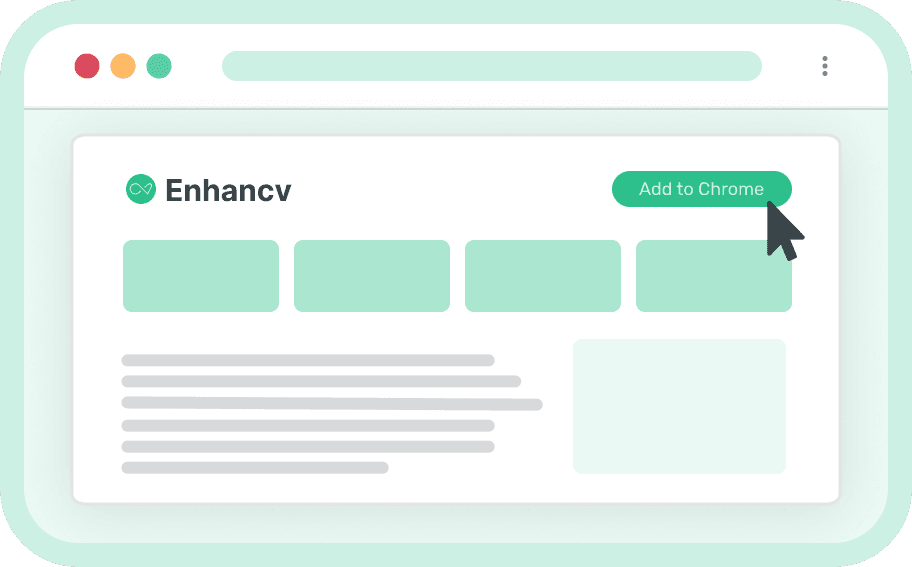
- Click ‘Add to Chrome’ at the top of this page. The extension’s listing opens in the Chrome Web Store.
- Click ‘Add to Chrome’ in the store too, then confirm.
- Sign in to your Enhancv account on the page that opens, or create one.
- Open Chrome’s extensions menu (the puzzle-piece icon) and pin Enhancv so it’s always to hand.
Which job sites does it work on?
The extension recognises adverts on LinkedIn, Indeed and Glassdoor. It also spots job adverts on most employers’ careers sites.
On sites it knows less well, such as Reed, Totaljobs, NHS Jobs or IrishJobs.ie, it may not flag the advert. You can then add the job yourself (see below).
What does it save from a job advert?
The job title, company, description, link, location and work type (on-site, hybrid or remote). It saves the salary too, when the advert lists one. You can add a note before you save.
What if a job advert isn’t detected?
Open the extension and click ‘Parse anyway’ to have it read the page, or fill in the ‘Add job’ form yourself. Only the job title and company are required.
What happens if I save the same job twice?
The extension tells you the job is already saved, so your tracker doesn’t fill up with duplicates.
What does the extension do with my data?
The extension reads the pages you open, on your device, to spot job adverts. When you’re signed in, only pages it identifies as job adverts are sent to Enhancv, with their link and content.
A job only goes into your tracker if you save it. Your data isn’t sold, and you can switch the extension off at any time.
Does the extension work without an Enhancv account?
It still shows its badge on job adverts, but you need a free Enhancv account to save a job. While you’re signed out, nothing is sent to Enhancv.
Where do I edit and organise saved jobs?
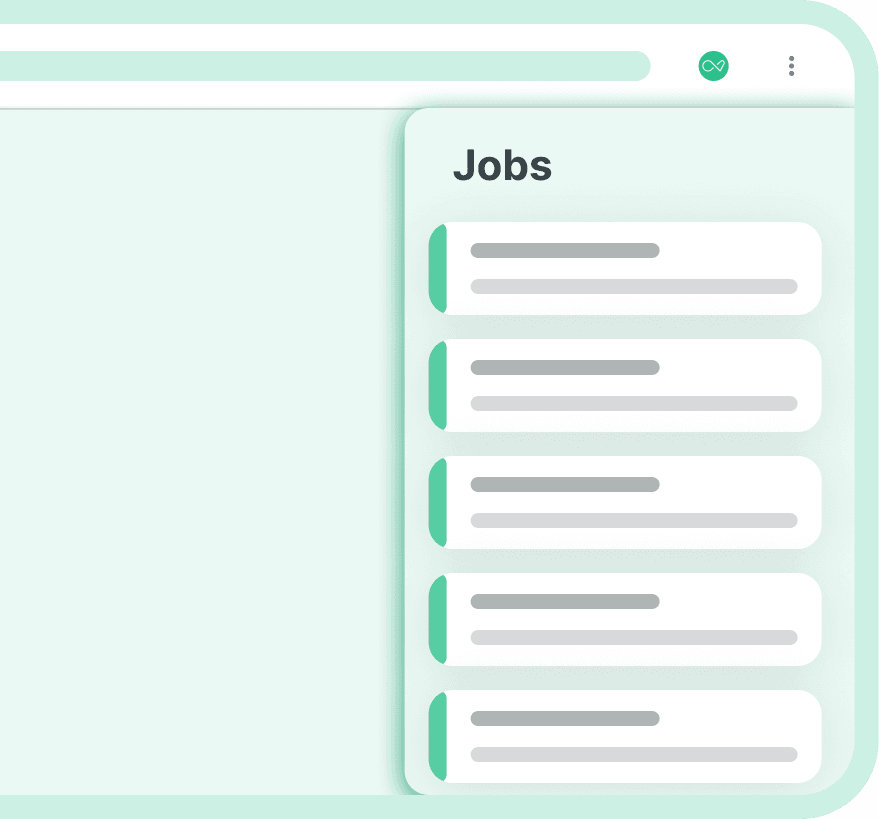
The extension shows how many jobs you’ve saved and how many applications you’ve sent this week, plus your latest saved jobs. To change a status, add tasks or link a CV, open your Enhancv Job Application Tracker.
Can the extension fill in application forms?
Yes, with Autofill. On a job application form, it fills in the standard fields from your Enhancv profile and CV, and suggests answers to open questions. You check everything and submit the application yourself.
Free accounts get a limited number of autofills, and Pro removes the limit. Autofill doesn’t work on Workday forms or on Indeed’s own application forms.
Can I stop Autofill appearing on a site?
Yes. When the extension offers Autofill on a form, choose ‘Don’t show again on this site’. Autofill then stays hidden on that site for 30 days.
Is the extension free?
Yes. It’s free to install, and a free Enhancv account lets you save as many jobs as you like.
Does it work on mobile?
No, the extension works in Chrome on a desktop or laptop computer. Its interface is in English, whatever language your browser uses.